Solutions
Hardware
Software
Services
Support and Downloads
About Zebra
DS82 Series Quick Start Guide
DS8208/DS8288 Quick Start Guide
USB Host Interface
DS8208/DS8288 Quick Start Guide
DS8208/DS8288 Quick Start Guide
DS8208/DS8288 Quick Start Guide
Model Numbers
Unpacking the Scanner
Cordless DS8208 Scanner Features
Corded DS8208 Scanner Features
Replacing the Battery
Connecting the Cradle
Inserting the DS8288 into the Standard Cradle
Inserting the DS8288 Scanner into the Presentation Cradle
USB Host Interface
RS-232 Host Connection
Aiming
Hand-Held Scanning
Hands-Free Scanning
Useful Barcodes
Beeper Indications
LED Indications
Troubleshooting
Ergonomic Considerations
USB Host Interface
View content for :
Platform:
All Platforms
1d-barcodes
USB Host Interface
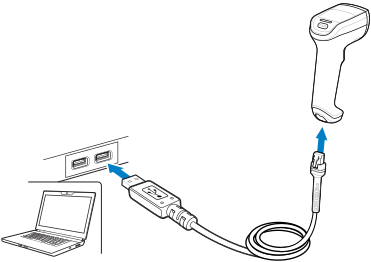
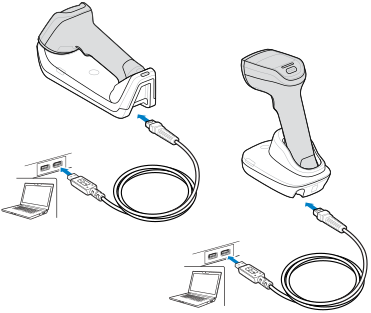
A USB connection to a host device provides power and communication to the scanner (via a cable for corded
DS8208
/
DS8208
R or via the cradle for cordless
DS8288
/
DS8288
R models). If necessary, scan the appropriate barcode to finish connecting the devices.
Corded
DS8208
/
DS8208
R USB Connection
Cordless
DS8288
/
DS8288
R USB Connection
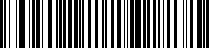
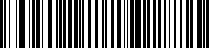
If the scanner does not connect to your device with the cable connection, scan the appropriate barcode.
*USB HID Keyboard
Symbol Native API (SNAPI) with Imaging Interface
×