Solutions
Hardware
Software
Services
Support and Downloads
About Zebra
US Home Page
US Home Page
WS Picking User and Administration Guide
Administration Features
Orders
Adding Orders
WS Picking User and Administration Guide
WS Picking User and Administration Guide
About this Guide
Icon Conventions
Notational Conventions
Service Information
System Overview
System Architecture
Demonstration
Production Customization Overview
Administration Features
Running the Picking Server
Logging In
Orders
Adding Orders
Modifying Existing Orders
Products
Adding New Products
Modifying Existing Products
Users
Adding a User
Modifying Existing Users
Application Overview
Installing the WS Picking Application
Logging In Remotely
Picking an Order
Adding Orders
Adding Orders
Create customer requests by specifying fulfillment details, assigning personnel, and associating specific products with the order.
On the
Orders
screen, click
Add Order
.
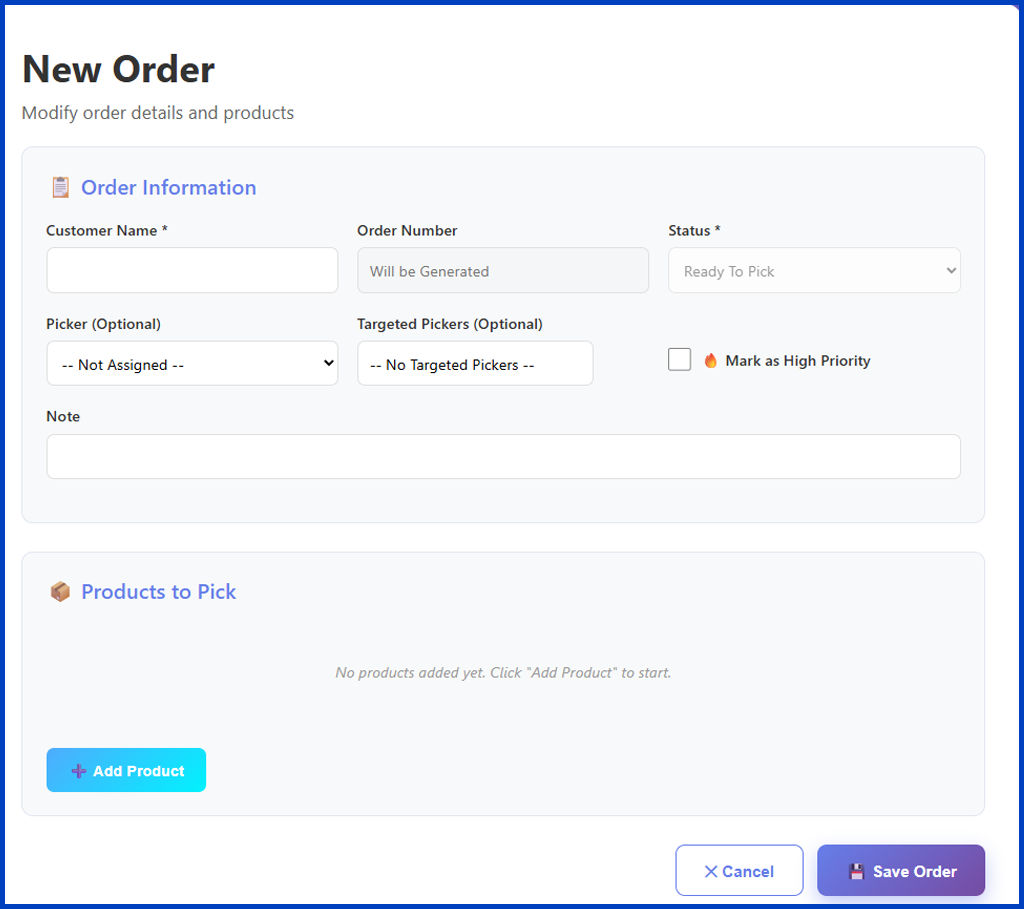
The
New Order
screen displays.
Enter the
Order Information
.
Enter the
Customer Name
.
Select the
Status
.
(Optional) Select a
Picker
.
(Optional) Select
Targeted Pickers
.
Select
Mark as High Priority
if the order is high priority.
Enter additional information in the
Note
field.
Click
Add Product
.
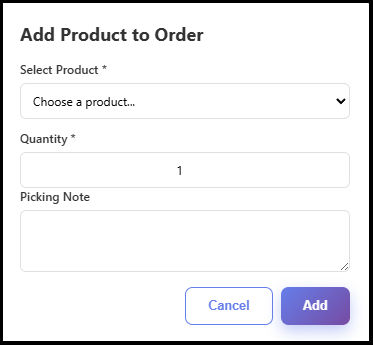
The
Add Product to Order
screen displays.
Select a product to enter.
Enter the quantity.
Enter additional information specific to the product in the
Picking Note
field.
Click
Add
.
Click
Save Order
.
A confirmation window displays.
Click
OK
.
Orders
×