Solutions
Hardware
Software
Services
Support and Downloads
About Zebra
US Home Page
US Home Page
WS Picking User and Administration Guide
Administration Features
Users
Adding a User
WS Picking User and Administration Guide
WS Picking User and Administration Guide
About this Guide
Icon Conventions
Notational Conventions
Service Information
System Overview
System Architecture
Demonstration
Production Customization Overview
Administration Features
Running the Picking Server
Logging In
Orders
Adding Orders
Modifying Existing Orders
Products
Adding New Products
Modifying Existing Products
Users
Adding a User
Modifying Existing Users
Application Overview
Installing the WS Picking Application
Logging In Remotely
Picking an Order
Adding a User
Adding a User
Establish system access for new personnel by defining credentials, assigning functional roles, and setting account permissions.
You must have administrator permissions to add new users.
Create new user accounts to grant individuals access to the system based on their assigned roles and permissions.
Click
Add Users
.
The
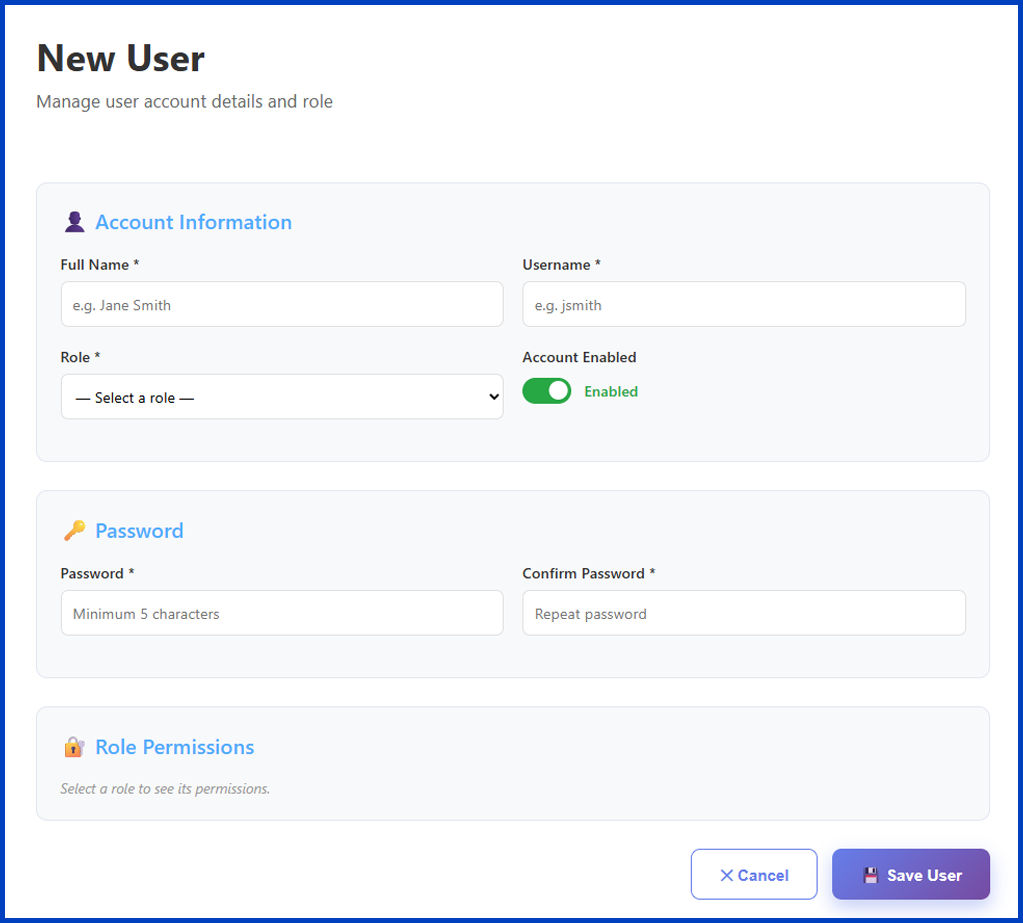
New User
screen displays.
In the
Account Information
section, enter the user account information.
In the
Full Name
text box, enter the first and last name of the user.
In the
Username
textbox, enter the username for the new user.
From the
Role
dropdown, select a role for the new user.
Toggle
Account Enabled
to
Enabled
if the user account is ready for use.
In the
Password
text box, enter a password that has at least 5 characters.
In the
Confirm Password
text box, enter the password again.
Create a
Password
for the user account.
Examine the
Role Permissions
.
If any permissions seem incorrect, change the
Role
in the
Account Information
section to match the expected permissions.
Click
Save User
.
A confirmation window displays.
Click
OK
.
The new user account displays in the
Users
list.
After creating the account, provide the user with their login credentials to access the system.
Users
×