Solutions
Hardware
Software
Services
Support and Downloads
About Zebra
US Home Page
US Home Page
WS Picking User and Administration Guide
Application Overview
Picking an Order
WS Picking User and Administration Guide
WS Picking User and Administration Guide
About this Guide
Icon Conventions
Notational Conventions
Service Information
System Overview
System Architecture
Demonstration
Production Customization Overview
Administration Features
Running the Picking Server
Logging In
Orders
Adding Orders
Modifying Existing Orders
Products
Adding New Products
Modifying Existing Products
Users
Adding a User
Modifying Existing Users
Application Overview
Installing the WS Picking Application
Logging In Remotely
Picking an Order
Picking an Order
Picking an Order
Select and pick products for an order using the
Picking Screen
.
Log in to the system and ensure you have an assignment to pick orders.
Use the
Picking Screen
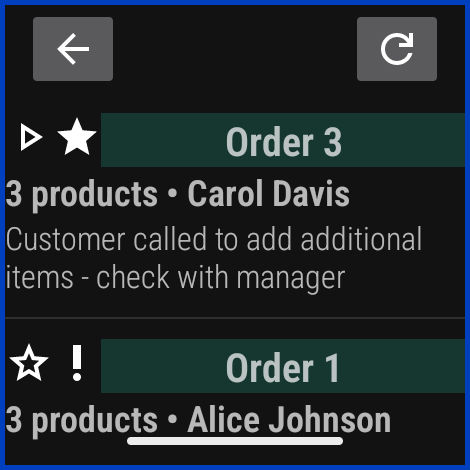
to view assigned orders, identify urgent tasks, and efficiently log scanned products to fulfill an order.
Navigate to the desired order.
Each order displays a description, the assigned picker, and the total number of products.
To update the order list, tap
Refresh
.
A
!
symbol displays next to urgent orders.
A full star displays next to orders officially assigned to you.
An empty star displays next to orders where you are a targeted picker (selected as a potential picker for that specific order).
Select an order to begin picking.
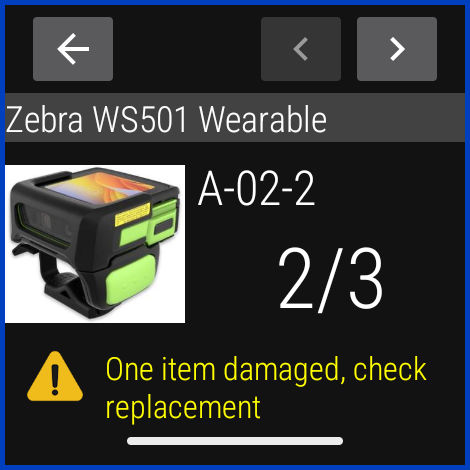
The first product for the selected order displays.
Review the product details.
If the product requires additional information, tap
.
Tap either
No Stock
or
Subst.
for out-of-stock or substitute products.
If you tap
No Stock
, a message displays in the text field indicating the product is out of stock. If you tap
Subst.
, you must scan the substitute product.
Tap the
Note
field to enter custom information about the product.
Use the arrows to navigate to the product you are picking.
Scan the product’s barcode.
The picked quantity count increases. When you reach the required quantity for the product, the next product in the order displays.
If needed, you can tap the quantity to manually edit the quantity count.
Repeat the scanning process until you pick all products in the order.
When exiting an order, choose one of the following:
Picking Paused
– for when an order is meant to be resumed at a later time.
Picked with Exceptions
– for when an order has been fully picked, but a few of the products had exceptions (such as no stock or a substitution).
Complete
– for when all products have been fully picked.
When you scan all products, the order is complete and no longer displays in your active picking list.
Proceed to the next assigned order or tap
Refresh
to check for new assignments.
Application Overview
×
 .
.