Configuring with Zebra Voice GUI
View content for :
Platform:

Configuring with Zebra Voice GUI

Configure Zebra Voice on the device using the Zebra Voice GUI.
For information on optional configuration settings, see XML Tags.
  1. Touch
    Settings
    .
  2. Enter the settings password. The default password is:
    zamboni
    .
  3. Touch
    Connection Parameters
    .
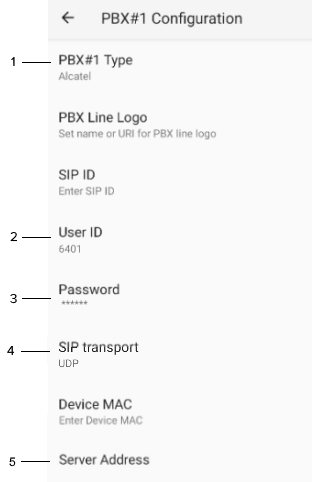
  4. Select a PBX configuration. The default configuration is:
    PBX#1 Configuration
    .
    For information on configuring additional PBX types, see Configuring Multiple PBX Types.
  5. Select
    PBX Type
    and choose
    Alcatel
    .
  6. Select
    User ID
    and enter the extension.
  7. Select
    Password
    and enter the password.
  8. Select
    SIP transport
    and choose
    UDP
    .
  9. Select
    Server Address
    and enter the fully qualified domain name (FQDN) or PBX IP Address.
    Number
    Item
    1
    PBX Type
    2
    User ID
    3
    Password
    4
    SIP transport
    5
    Server Address
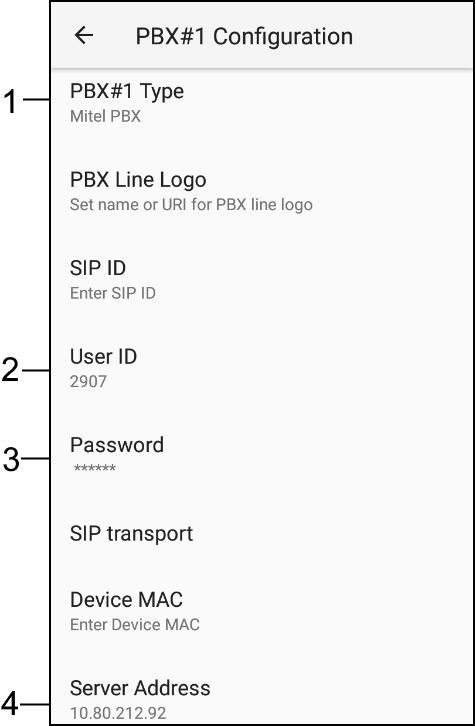
  10. Touch the
    PBX Type
    field and select
    Mitel 3000
    or
    Mitel 5000
    .
  11. Enter the
    User ID
    .
  12. Enter the
    Password
    .
  13. Enter the PBX
    Server Address
    .
    Number
    Item
    1
    PBX Type
    2
    User ID
    3
    Password
    4
    Server Address
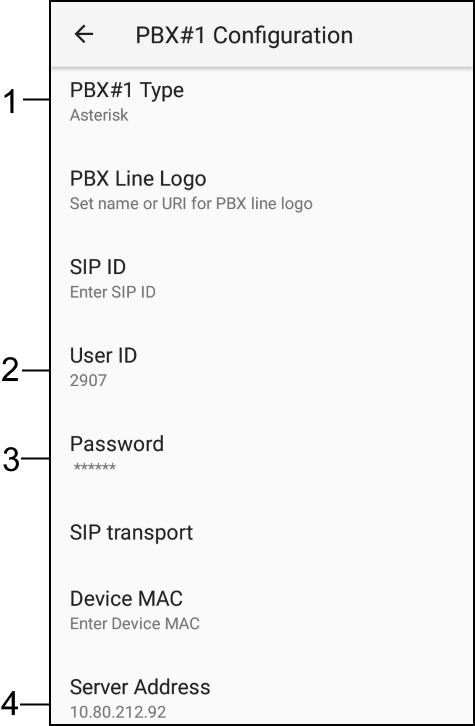
  14. Touch the
    PBX Type
    field and select Asterisk.
  15. Enter the
    User ID
    .
  16. Enter the
    Password
    .
  17. Enter the PBX
    Server Address
    .
    Number
    Item
    1
    PBX Type
    2
    User ID
    3
    Password
    4
    Server Address
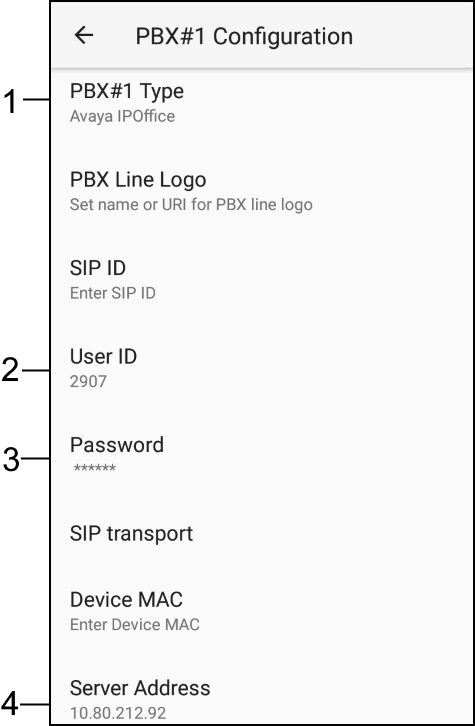
  18. Touch the
    PBX Type
    field and select Avaya IP Office.
  19. Enter the
    User ID
    .
  20. Enter the
    Password
    .
  21. Enter the PBX
    Server Address
    .
    Number
    Item
    1
    PBX Type
    2
    User ID
    3
    Password
    4
    Server Address
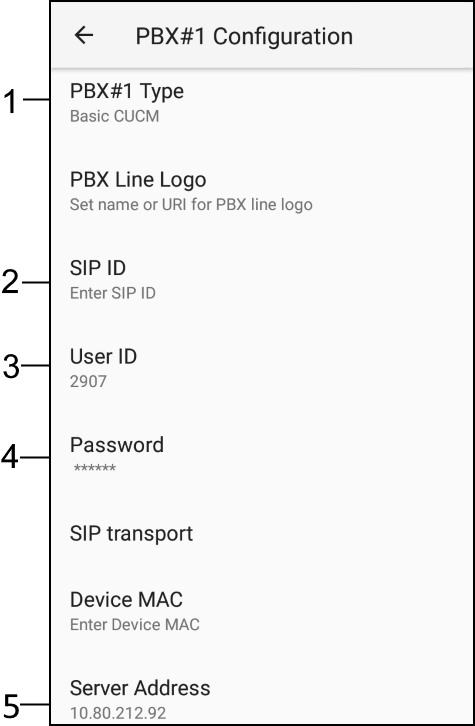
  22. Enter the following information for Basic CUCM:
    1. Touch
      PBX#1 Type
      and select Basic CUCM.
    2. Touch
      SIP ID
      and enter the
      Phone Directory Number
      .
    3. Touch
      User ID
      and enter the
      Digest User
      (optional).
    4. Touch
      Password
      and enter the
      Digest Password
      (optional).
    5. Enter the PBX
      Server Address
      .
      Number
      Item
      1
      PBX Type
      2
      SIP ID
      3
      User ID (optional)
      4
      Password (optional)
      5
      Server Address
      The optional parameters Server Address2 and Server Address 3 are secondary addresses, used if the primary server address is not reachable.
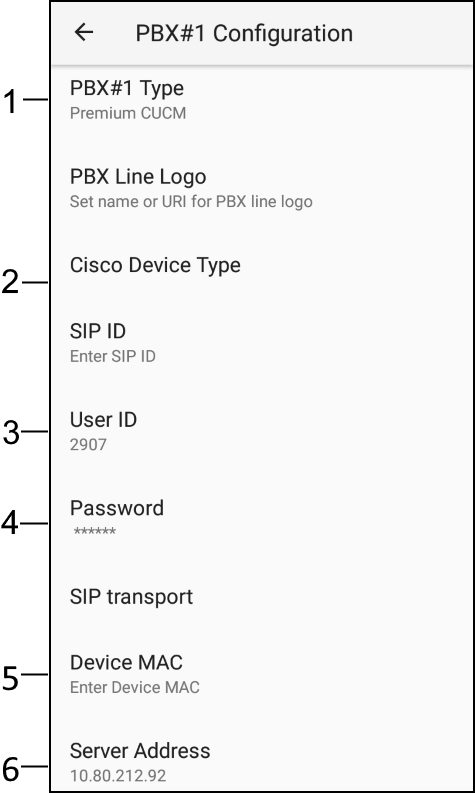
  23. Enter the following information for CUCM Premium.
    1. Touch
      PBX#1 Type
      and select Premium CUCM.
    2. Ensure
      Device Type
      is Cisco 8865.
    3. In the
      User ID
      field, enter the Digest User (optional).
    4. In the
      Password
      field, enter the Digest Password (optional).
    5. Enter the
      MAC Address
      . See Device Identification for more information on MAC addresses.
    6. Enter the PBX
      Server Address
      .
    Number
    Item
    1
    PBX Type
    2
    CISCO Device Type
    3
    User ID (optional)
    4
    Password (optional)
    5
    MAC Address
    6
    Server Address
    The optional parameters Server Address2 and Server Address 3 are secondary addresses, used if the primary server address is not reachable.
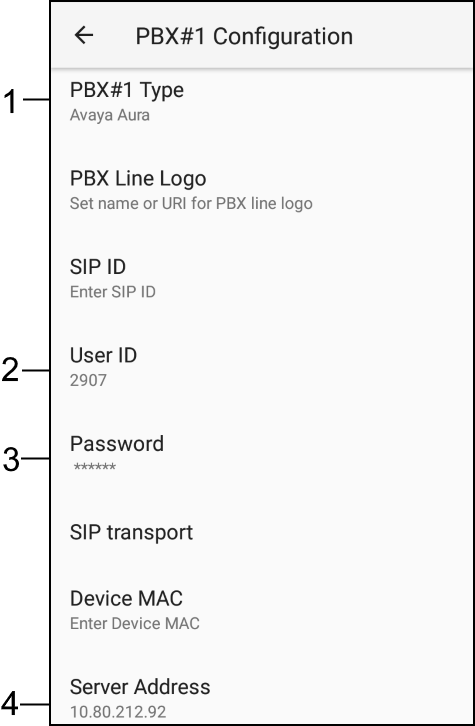
  24. Touch the
    PBX Type
    field and select Avaya Aura.
  25. Enter the
    User ID
    .
  26. Enter the
    Password
    .
  27. Enter the PBX
    Server Address
    .
    Number
    Item
    1
    PBX Type
    2
    User ID
    3
    Password
    4
    Server Address
    The optional parameters Server Address2 and Server Address 3 are secondary addresses, used if the primary server address is not reachable.
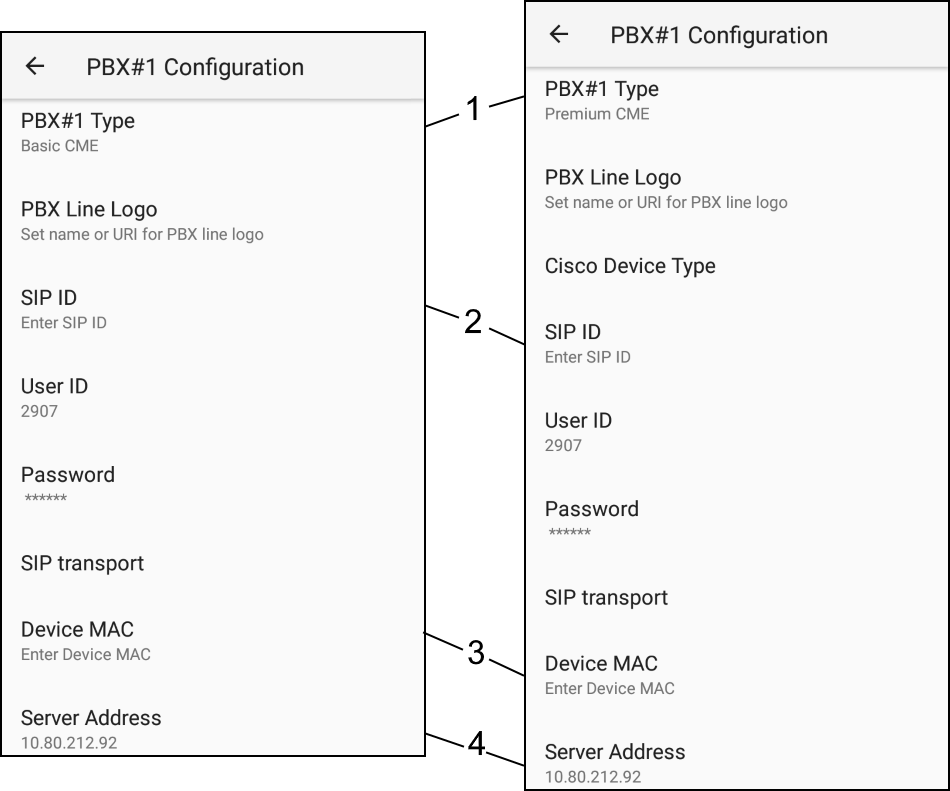
  28. Touch the
    PBX Type
    field and select Basic CME or Premium CME.
  29. Enter
    SIP ID
    (Basic CME only).
  30. Enter the
    MAC Address
    . See Device Identification for more information on MAC addresses.
  31. Enter the PBX
    Server Address
    .
    Number
    Item
    1
    PBX Type
    2
    SIP ID
    3
    Device MAC
    4
    Server Address
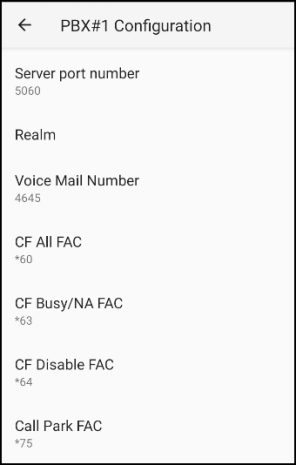
  32. Enter the
    Voice Mail Number
    .
  33. Enter the call forward and call park settings as required.
    To use the
    CF Busy/NA FAC
    feature, you must create a button. See Configuring the Call Forward Busy Button.
  34. Touch the back button three times to return to WFC Voice home screen.
A confirmation that the configuration has been saved to
WFConnect.xml
displays.