Monitor the Assigned Extensions

Monitor the Assigned Extensions

Zebra Voice allows users to monitor assigned extensions when a button with action EXTENSIONS is added to the dashboard.
This feature is only available when using Extension Manager.
Example of XML fragment with EXTENSIONS button:
<Button> <title>Monitor</title> <action>EXTENSIONS</action> <value>https://<EXM-URL>/profiles/report/1026&api_key=XXXXXXXX</value> <enabled>true</enabled> <confirm>false</confirm> <description></description> <icon></icon> <scale>CENTER_INSIDE</scale> </Button>
The
value
field is not required when the client is configured with a standalone Extension Manager (shared profiles feature). To monitor extensions in the Profile Manager environment, use the following:
  • Add a new EXTENSIONS button with ‘value’ set as URL to the Extension Manager for monitoring the extensions:
    Example of  EXTENSIONS button with value: https:// /profiles/report/1026&api_key=XXXXXXXX
    Where 1026 is the store/site number.
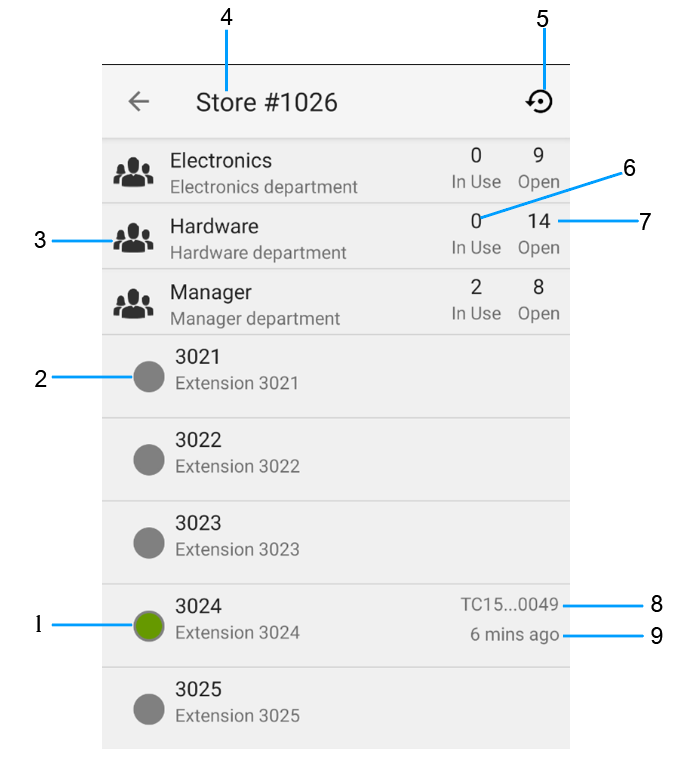
    Monitor Assigned Extensions Screen
    Callout
    Description
    1
    Gray: Available
    Green: Assigned
    Blue: Assigned/Missed the last checkpoint
    Red: Assigned/No data from the client
    2
    Extension Info
    3
    Department
    4
    Current Store Name
    5
    Reload data from the server
    6
    Total extensions
    7
    Used/Taken extension
    8
    Device model+last 4-digit of S/N
    9
    When it was assigned
