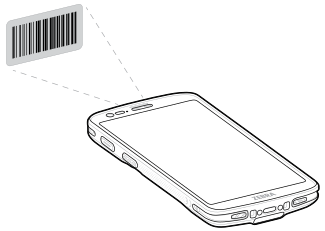
To read a barcode, a scan-enabled application is required. The device contains the DataWedge application, which allows you to enable the imager, decode the barcode data, and display the barcode content.
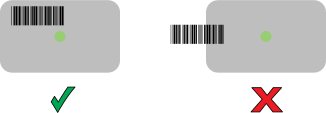
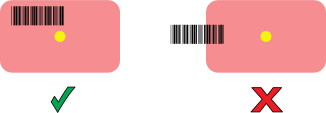
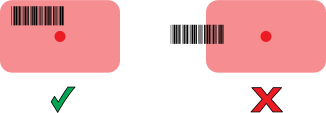
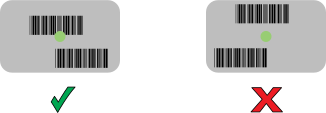
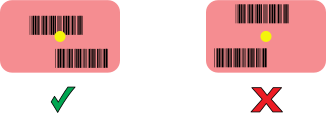
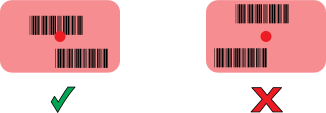
The SE4100 imager displays the green dot LED aimer, while the SR500 imager displays a yellow dot LED aimer, and the SR560 imager display a red dot laser aimer.
Ensure that an application is open on the device and a text field is in focus (text cursor in text field).
Point the exit window of the device at a barcode.
Press and hold the scan button.
The device projects the aiming pattern.
When the device is in Pick List Mode, the device does not decode the barcode until the center of the aimer touches the barcode.
Ensure the barcode is within the area formed by the aiming pattern. The aiming dot is used for increased visibility in bright lighting conditions.
Aiming Patterns
SE4100
SR500
SR560
Pick List Mode with Multiple Barcodes in Aiming Patterns
SE4100
SR500
SR560
By default, the scanner emits a beep to indicate that the QR code is successfully decoded.
The data capture for the SE4100 imager has a green LED aimer, the SR500 imager has a yellow LED aimer, and the SR560 imager has a red laser aimer.
Release the scan button.
Imager decoding usually occurs instantaneously. The device repeats the steps required to take a digital picture (image) of a poor or difficult barcode as long as the scan button remains pressed.
The barcode content data displays in the text field.