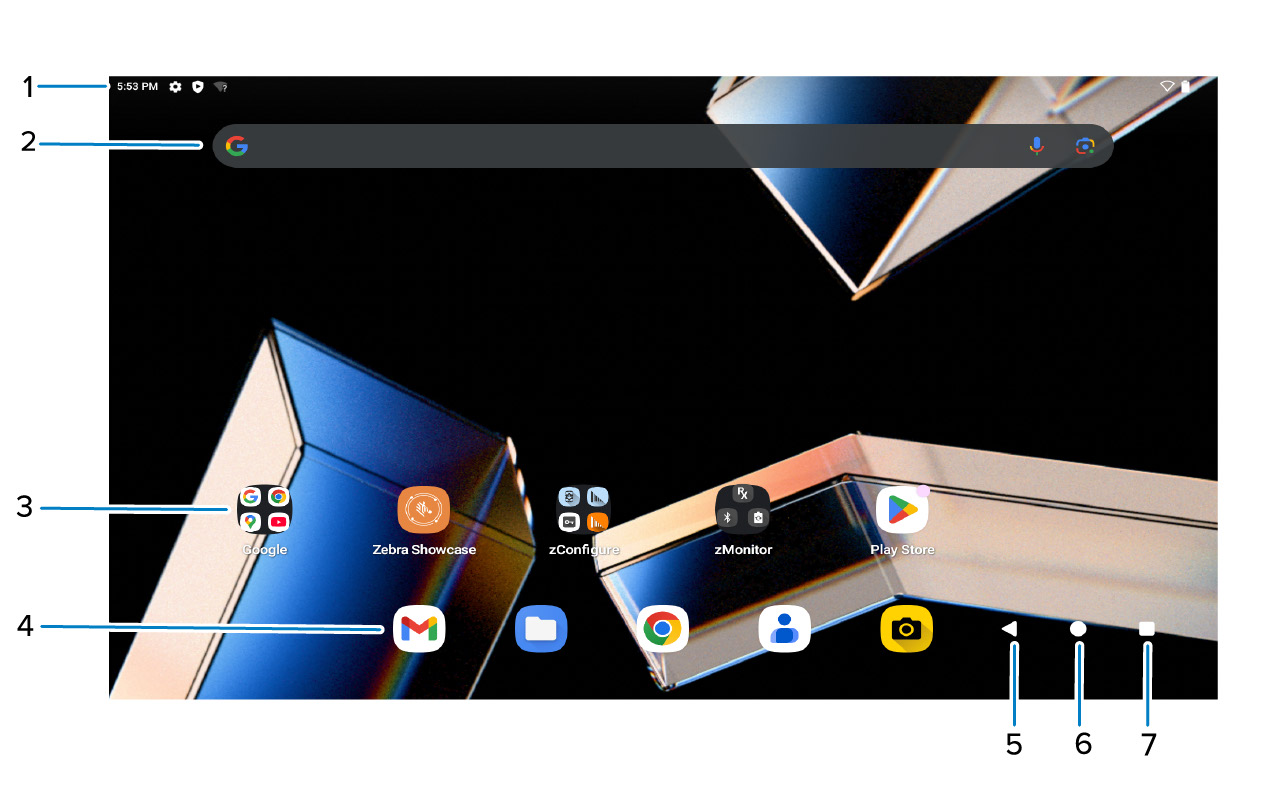
Home Screen

Home Screen

Turn on the device to display the Home screen. Depending on how your system administrator configured your device, your Home screen may display differently than the graphics in this section.
After the device enters Sleep mode, the Home screen displays with the lock icon. Touch the screen and swipe up to unlock. The Home screen provides additional screens to place widgets and shortcuts. Touch and hold an icon, then drag it to place it on one of the other screens. Swipe left or right on the Home screen to view additional screens.
By default, AOSP devices do not display the same icons on the Home screen as GMS devices. Icons shown are for illustrative purposes only
You can customize the Home screen icons and they may appear different from those shown.
Home screen
A13 Home Screen
1
Status bar
Displays the time, status icons on the right side, and notification icons on the left side.
2
Widgets
Launch stand-alone apps that run on the Home screen.
3
Shortcut icons
Open apps installed on the device.
4
Folder
Contain apps.
5
Back
Display the previous screen.
6
Home
Display the Home screen.
7
Recent
Display recently used applications.
