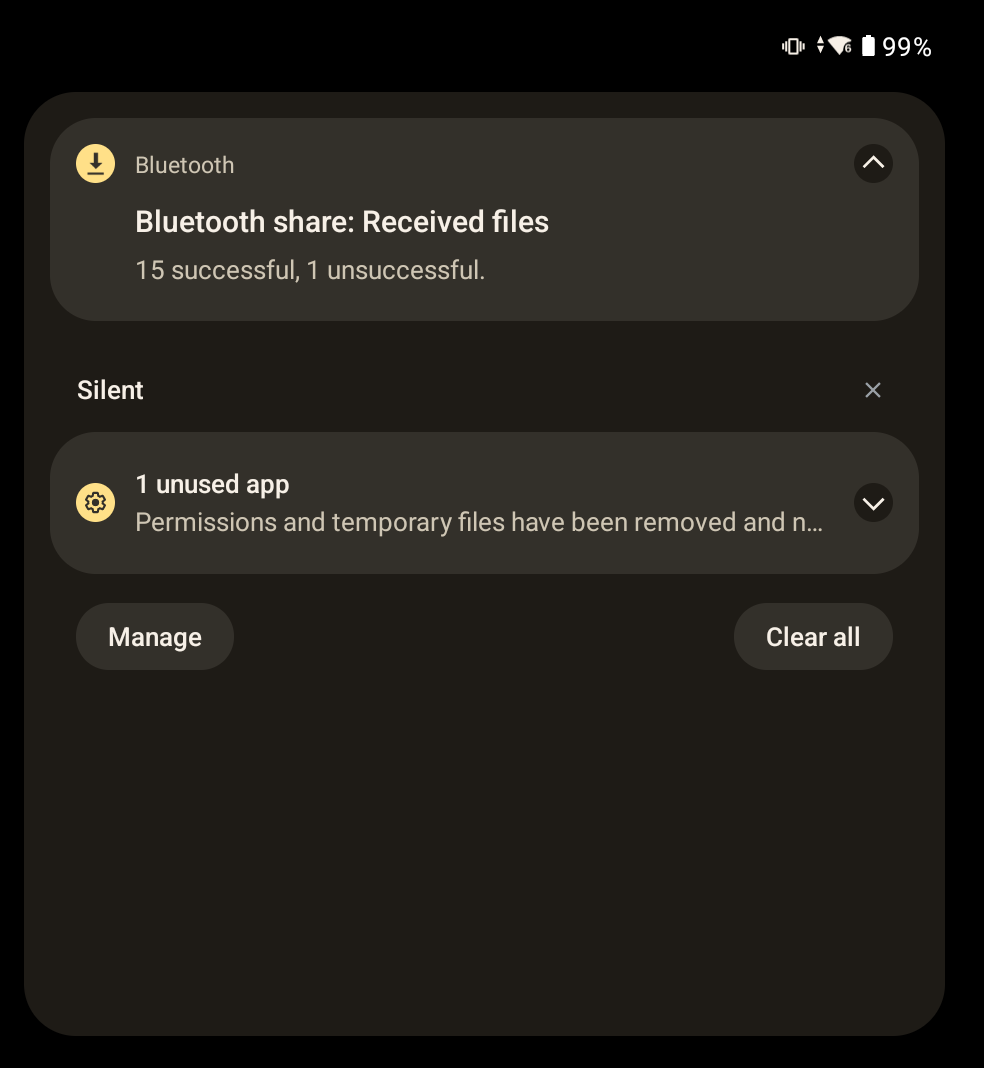
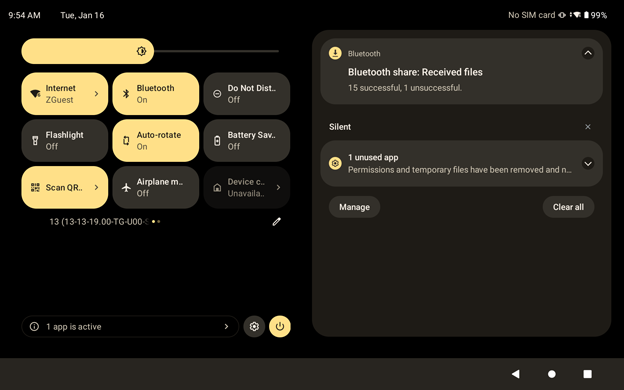
Notification icons alert you to the arrival of new messages, calendar events, alarms, and ongoing events. When a notification occurs, an icon appears in the Status Bar along with a brief description.
Notification Panel Portrait Mode
Notification Panel Landscape Mode
To view a list of all notifications, open the Notification panel by dragging the Status bar down from the top of the screen.
To respond to a notification, open the Notification panel and touch a notification. The Notification panel closes, and the corresponding app opens.
To manage recent or frequently used notifications, open the Notification panel and touch
Manage > App notifications
. Toggle the switch next to an app to turn off all notifications for that app, or touch the app for more notification options.
To clear all notifications, open the Notification panel and touch
Clear all
. All event-based notifications are removed, but ongoing notifications remain in the list.
To close the Notification panel, swipe the panel up.