Installing the VESA Mount
View content for :
Product:

Installing the VESA Mount

This section describes the method for installing the device onto a VESA mount.
This accessory is not compatible with Essentials SKUs.
Power off the ET4X before installing or removing the VESA Mount.
Do not use any tool for battery cover removal. Puncturing the battery or seal may cause a hazardous condition and a potential risk of injury.
  1. Press and hold the Power button until the menu appears. Touch
    Power off.
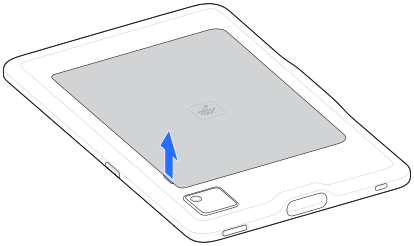
  2. Hold the device down with one hand and lift the corner of the battery cover up from the notched area.
    Do not use any tools for battery cover or battery removal. Puncturing the battery or seal may cause a hazardous condition and a potential risk of injury.
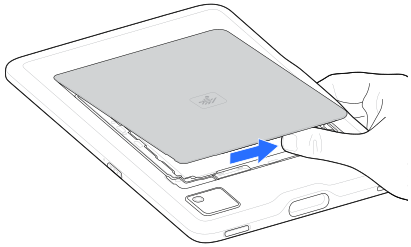
    Finger lifting and removing battery cover
  3. Place your thumb under the cover and slide your thumb along the short edge of the cover toward the other side.
    slide-finger image
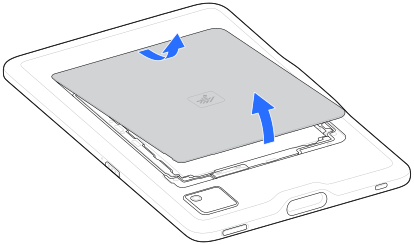
  4. Carefully lift the edges of the cover, releasing the clips.
    Finger lifting and removing battery cover
  5. Remove the cover from the back housing.
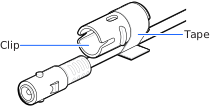
  6. If you are using a Zebra DC line cord (CBL-DC-388A2-01, not included) and power supply (PWRBGA12V50W0WW), remove and discard the tape securing the clip to the connector.
    If you are using a third-party power supply, remove and discard tape, and keep clip in a secure place for possible future use with a Zebra DC line cord and power supply.
    Clip and Tape
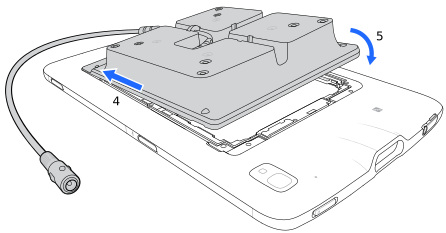
  7. Insert the tabbed end of the VESA mount into the battery well. Ensure that the tabs on the VESA mount are aligned with the slots in the battery well.
    Insert VESA Mount
  8. Rotate the VESA mount down into the battery well.
  9. Carefully press down around the edges of the VESA mount. Make sure that the cover is seated properly.
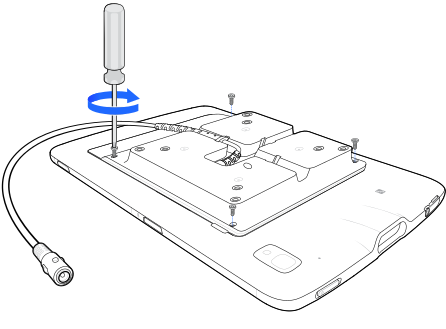
  10. Using a T5 Torx screwdriver, secure the VESA mount to the device using four M2 screws. Torque to 0.43 N-m (3.8 lbf·in).
    Secure VESA Mount
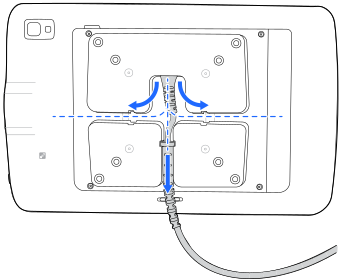
  11. Determine the desired mounting orientation and reroute the power cable as required. The VESA mount supports portrait and landscape mounting and provides three cable routing slots.
    VESA Mount Orientation
  12. Mount the device using the included M4 screws. The ET4X VESA mount supports 75 mm (2.95 in.) or 100 mm (3.93 in.) mounting patterns.
  13. If you are using a Zebra DC line cord and power supply, attach the provided cable clip to the VESA mount power cable connector.
    Do not attach the clip if using a third party power supply.
    Attach cable clip to VESA mount power cable connector.
  14. Plug the DC line cord connector to the VESA mount cable connector and clip.
    Plugging the DC line cord to the VESA cable connector.
    If you are using a third-party power supply, secure the cable connectors using cable ties or tape.